How to add a profile image to Microsoft account
17/03/2026
Maintaining an up‑to‑date profile image helps ensure a consistent and professional presence across Microsoft services. The following guidance outlines the steps required to upload or update your profile picture within your Microsoft account, supporting clear identification across all connected applications.
- Open Outlook on the web by clicking the button below
Open Outlook via a browser
Sign in with your Microsoft 365 account if prompted.
-
On the top-right corner, click your:
current profile photo, or initials (if you don’t have a photo yet)
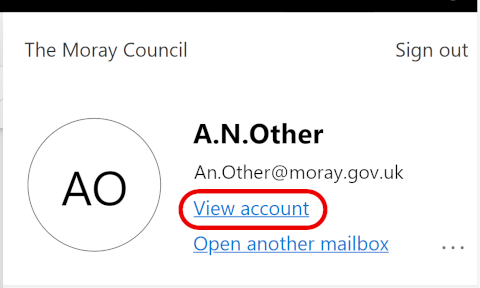
This opens your account panel.

- Click on the view account
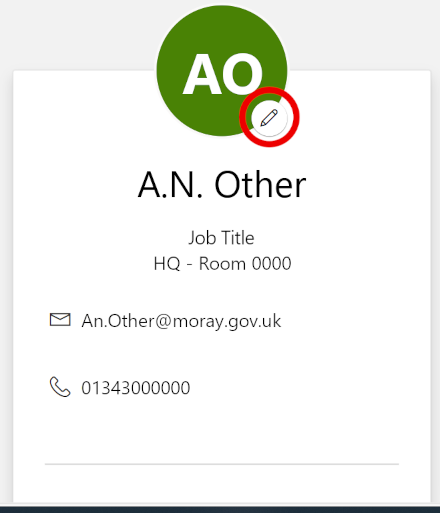
- You’ll see your name, email, and profile image.
Select “Edit profile” or click the pencil icon
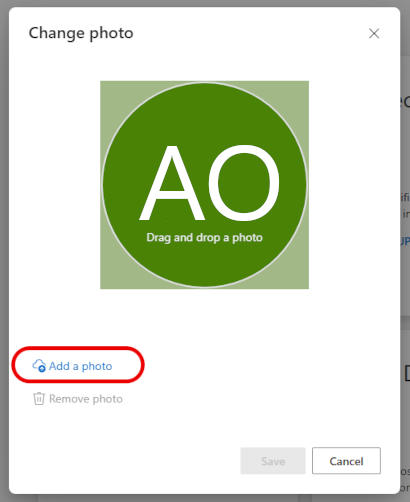
- Click on the Add a photo link
- Select an image from your device to upload and click open.
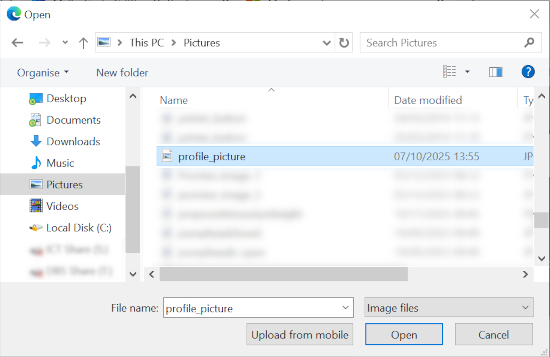
It's important that your picture is a photo of your face so that people can recognise you.
-
Crop or reposition it if needed
Microsoft accepts common formats like JPG, PNG, and GIF.

- Click Save button
Your new profile picture is now stored in your Microsoft account.